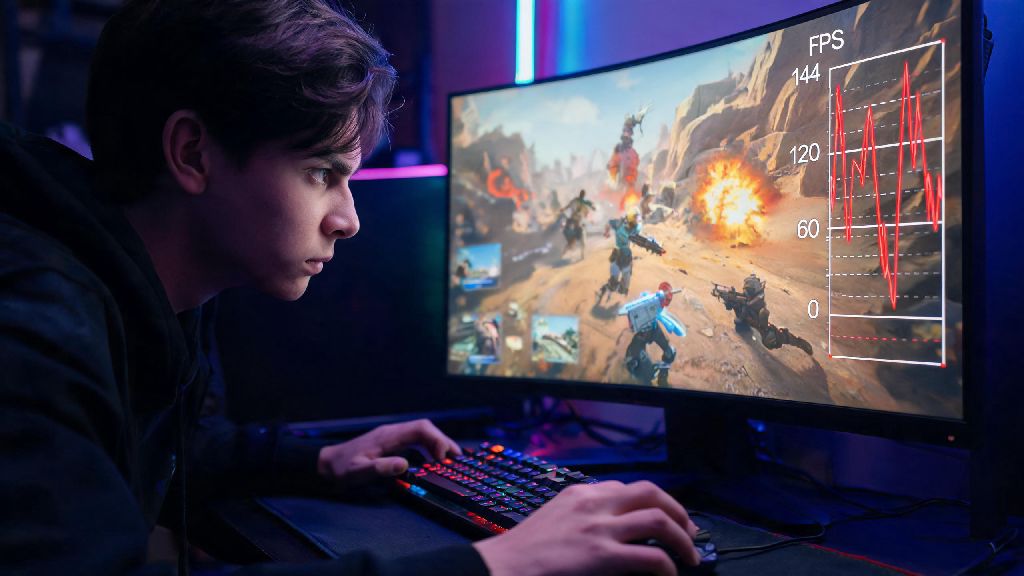
If you’ve ever dropped into an Apex Legends ranked match only to hit random FPS spikes mid-fight, you know how frustrating it can be to lose a 1v1 over something completely out of your control. Many players ask can you cap fps in Apex Legends as a quick fix for inconsistent performance, and the short answer is yes – when done right, it’s one of the simplest changes you can make to get more reliable gameplay every time you queue up. I’ve tested every FPS capping method across PC, PlayStation, and Xbox over 3 years of playing ranked Apex, so I’ll walk you through exactly what works, what doesn’t, and which settings you should adjust based on your setup and play style.
Why You Should Consider Capping FPS in Apex Legends
Uncapped FPS might sound like the best option for performance on paper, but it almost always causes more issues than it solves for most players. When your GPU is pushing out far more frames than your monitor can display, you end up with inconsistent frame timing, screen tearing, and unnecessary hardware strain, even if you have a high-end gaming setup. I used to run my PC uncapped, getting anywhere from 120 to 220 FPS in matches, and I’d constantly get random stutters when the game pulled extra resources during big team fights or end-game circle clusters. Once I capped it to 144, matching my monitor’s refresh rate, those stutters disappeared almost entirely.
The benefits of capping your FPS go far beyond just smoother gameplay, too. Some of the most noticeable perks include:
You don’t have to be a competitive player to enjoy these benefits, either. Even casual players who only play a few matches a week will notice less fan noise and smoother movement if their PC was previously running at 100% GPU capacity for every match.
How to Cap FPS in Apex Legends Across Every Platform
The process for capping your FPS changes slightly depending on what platform you play on, but none of the steps require advanced tech knowledge or paid software to complete. For PC players, you have three main options to choose from, each with small pros and cons.
The easiest option is to use the in-game FPS limiter built directly into Apex. Simply open the settings menu, navigate to the Video tab, scroll down to the FPS Limit option, and set it to your desired cap. Most players should set this to 2-3 FPS below their monitor’s maximum refresh rate to avoid screen tearing without losing responsiveness. If you play Apex through Steam, you can also add a launch command to set your cap: right click Apex Legends in your Steam library, select Properties, go to the General tab, and type +fps_max [your desired number] into the launch options box. This method is slightly more reliable than the in-game limiter for some setups, as it applies before the game even launches.
If you want the lowest possible input lag, use your GPU’s built-in limiter instead. For NVIDIA users, open the NVIDIA Control Panel, go to 3D Settings > Program Settings, find Apex Legends in the list of programs, and set the Max Frame Rate option to your chosen cap. AMD users can do the same by opening Radeon Software, navigating to the Games tab, selecting Apex Legends, and enabling the Frame Rate Target Control feature. Last season, I tested all three limiters on my RTX 3070 setup, and I got the most consistent frame times using the NVIDIA limiter, but you should test all three to see which works best for your hardware.
For console players, the process is much simpler. PS5 and Xbox Series X/S have built-in FPS caps tied to your display settings. If you have a 120Hz monitor or TV, enable 120Hz output in your console’s system settings, then set Apex to Performance Mode in the in-game video settings to get a steady 120 FPS cap. If you play on a 60Hz display, the game will automatically cap to 60 FPS with no extra adjustments needed. Older consoles like the PS4 and Xbox One have hard-coded FPS caps, so you won’t be able to adjust these further.
Common Mistakes to Avoid When Capping Your FPS
While capping your FPS is a simple tweak, there are a few common mistakes that can make your performance worse instead of better. The biggest mistake I see players make is running multiple FPS limiters at the same time. If you set a cap in-game, then set another in the NVIDIA Control Panel, the conflicting settings can cause even worse stutters than you had before. I learned this the hard way last season, when I accidentally left both limiters on after a driver update and dropped from Diamond to Platinum 3 in a week before I realized what was happening. Stick to one limiter for the best results.
Another common error is capping your FPS far below your monitor’s maximum refresh rate. If you have a 144Hz monitor, capping to 60 FPS will make your gameplay feel sluggish and unresponsive, and you’ll waste the extra performance you paid for. The only exception to this rule is if you stream or record your gameplay, and you need to free up extra system resources for your streaming software. In that case, capping 10-15 FPS below your maximum possible frame rate is a reasonable tradeoff.
You also want to always test your settings in the firing range first before jumping into a ranked match. Spend 10 minutes testing movement, gunfights, and ability usage to make sure you don’t have any new stutters or input lag issues before you risk losing RP. I also recommend playing one casual match after adjusting your settings, as the firing range doesn’t have the same number of assets or player counts as a full match, so you might miss small stutters that only pop up during real gameplay.
Is Capping FPS Right for Your Play Style?
Capping your FPS isn’t a one-size-fits-all fix, and it’s not necessary for every player. If you only play a couple of casual matches a week with friends, and you don’t notice any stutters or screen tearing during gameplay, you probably don’t need to bother capping your FPS. The only time it’s worth doing for casual players is if your PC runs hot or your fans get loud when you play, since capping will cut down on GPU usage significantly, making your gaming sessions much quieter.
Competitive ranked players will see the biggest benefit from capping FPS, especially those in Platinum rank or higher. At higher ranks, small differences in input lag and frame consistency can be the difference between winning a fight and getting sent back to the lobby. I’ve talked to multiple semi-pro Apex players who all cap their FPS 2-3 FPS below their monitor’s refresh rate, and it’s a standard setting in most pro scrim lobbies.
If you stream or record your Apex gameplay, capping your FPS is also a no-brainer. Freeing up extra CPU and GPU resources will reduce dropped frames in your stream or recording, even during busy fights with multiple ability effects and players on screen. I started capping my FPS at 140 when I began streaming last year, and I went from having 5-10 dropped frames per stream to almost zero, even during long 6-hour ranked grinds.
At the end of the day, the answer to can you cap fps in Apex Legends is a resounding yes, and it’s one of the easiest, free performance tweaks you can make to get more out of your matches. You don’t need any fancy hardware or paid software to do it, and even small adjustments can make a huge difference in how smooth your gameplay feels. Test out different cap levels for your setup, stick to one limiter, and you’ll be well on your way to more consistent wins every time you drop into Kings Canyon or World’s Edge.