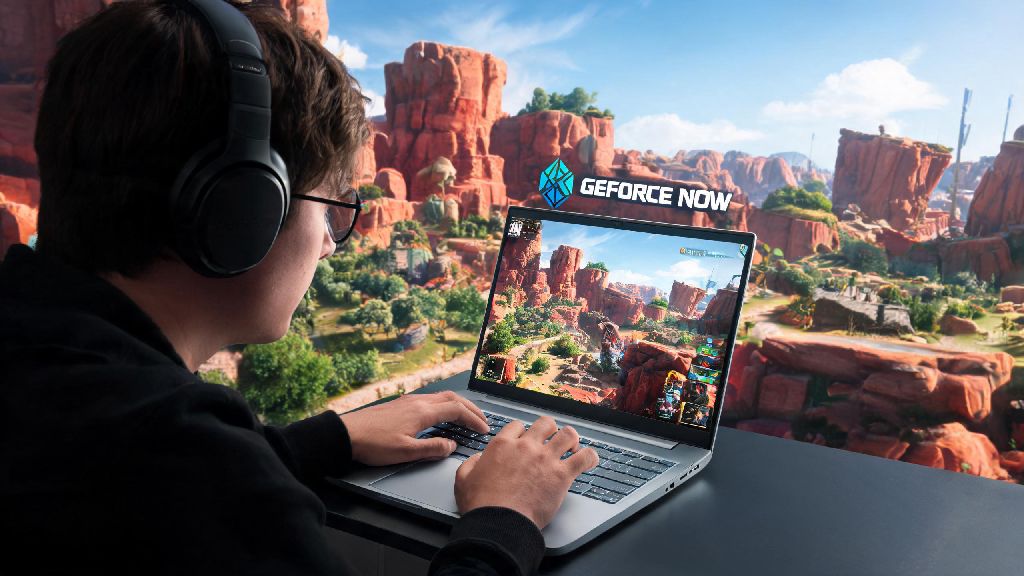
If you’ve ever stared at your 5-year-old laptop, wishing you could drop into Kings Canyon for a few quick Apex matches without dropping $800 on a new GPU, you’ve almost certainly asked can you play apex legends on geforce now. Cloud gaming has completely changed how we access AAA titles over the last few years, and I’ve tested Apex on GeForce Now across three different devices over the past six months to see how it holds up for both casual pub stomps and ranked grind sessions. This guide covers everything you need to know to get set up, avoid common issues, and get the smoothest possible performance.
Can You Play Apex Legends on GeForce Now Officially?
The short answer is yes, Apex Legends is fully supported on GeForce Now as of 2022, after a short period where EA pulled its library from the platform. All versions of the game (Steam, Epic Games, and EA App) are accessible, so you don’t have to worry about switching store accounts to play. You don’t need to own the game on the same store you used to sign up for GeForce Now as long as your EA account is linked correctly. All your in-game progress, skins, ranked rank, and battle pass progress carry over exactly as they would if you were playing on a local gaming PC, since all data is stored on EA’s servers, not NVIDIA’s cloud instances. You also get access to all seasonal updates and limited-time events the exact same day they go live for local players, so you won’t miss out on new content.
What You Need to Play Apex Legends on GeForce Now
Getting set up to play Apex on GeForce Now takes less than 10 minutes, and you don’t need any fancy hardware to get started. The basic requirements are:
I’ve tested the free tier on a 2018 Chromebook with a 25Mbps home internet connection, and it ran smooth enough for casual unranked matches, though I did get stuck in 10-minute queues a few times during weekend peak hours. Controller and mouse/keyboard inputs are both fully supported, so you don’t have to switch up your preferred playstyle to use cloud streaming. You can even plug in a headset for voice chat with your squad, no extra setup required.
Common Issues When Playing Apex Legends on GeForce Now (And How to Fix Them)
No cloud streaming service is perfect, and you might run into a few small hiccups when playing Apex on GeForce Now, but most are easy to fix in a minute or two. The most common issue people run into is input lag, which usually comes from a spotty Wi-Fi connection. If you notice your aim feels off or your inputs take a second to register, try connecting your device to your router via ethernet cable, or move closer to your Wi-Fi router to get a stronger signal. You should also turn off any background downloads on your network, like streaming 4K Netflix on another device, while you play.
Another common complaint is long queue times on the free tier. The fix here is pretty simple: try logging on outside of 6pm to 10pm local time, when most people are using the service, or upgrade to the $9.99/month Priority tier to skip queues entirely. If you run into an account linking error when you try to launch the game, double check that your EA account is properly linked to your Steam or Epic Games account, and that you’re signed into the correct store account on your browser before opening GeForce Now. You won’t lose any in-game progress if you run into a crash mid-session, so you don’t have to worry about losing ranked points if your internet cuts out for a second.
Pros and Cons of Playing Apex Legends on GeForce Now
Before you decide if GeForce Now is the right way for you to play Apex, it’s worth weighing the good and the bad. The biggest upside is obviously that you don’t need a high-end gaming PC to run the game at max settings. You can play on almost any device you already own, including cheap Chromebooks or old work laptops, and you don’t have to wait for huge 50GB game updates to download every time a new season drops. All your progress carries over, so you can switch between playing on your home PC and GeForce Now on the go without losing anything.
That said, there are a few downsides to keep in mind. You need a consistent internet connection to play, so if you live in an area with spotty service, you’ll probably run into lag or disconnections pretty often. The free tier has a 1-hour session limit and queue times during peak hours, which can be annoying if you want to play for a few hours straight. You also can’t use custom mods or third-party overlays that aren’t approved by NVIDIA, so if you use custom stats trackers, you might be out of luck. If you travel a lot, GeForce Now is the best way to keep up with your Apex ranked grind without hauling a heavy gaming laptop with you. I used it on a hotel Wi-Fi during a work trip last month, and I was able to climb from Gold 3 to Platinum 4 without any major lag issues.
So to answer the question one more time, can you play Apex Legends on GeForce Now? Absolutely, and it’s one of the most accessible options for playing the game if you don’t have a powerful gaming rig. It’s not a perfect fit for everyone, especially if you have unreliable internet or rely on custom mods, but for most casual and mid-tier competitive players, the performance is more than good enough to hold your own in any match. If you’ve been curious about cloud gaming for Apex, give the free tier a shot this week - you might be surprised how smooth it runs even on older hardware.